Choosing a theme
A theme is the look of your display — colours, layout, typography. SalahClock ships 18+ hand-crafted themes, and switching is instant and reversible.
Browse the gallery
Visit the Themes gallery to see them all, or open the Themes tab inside any clock's settings to change that clock's design.
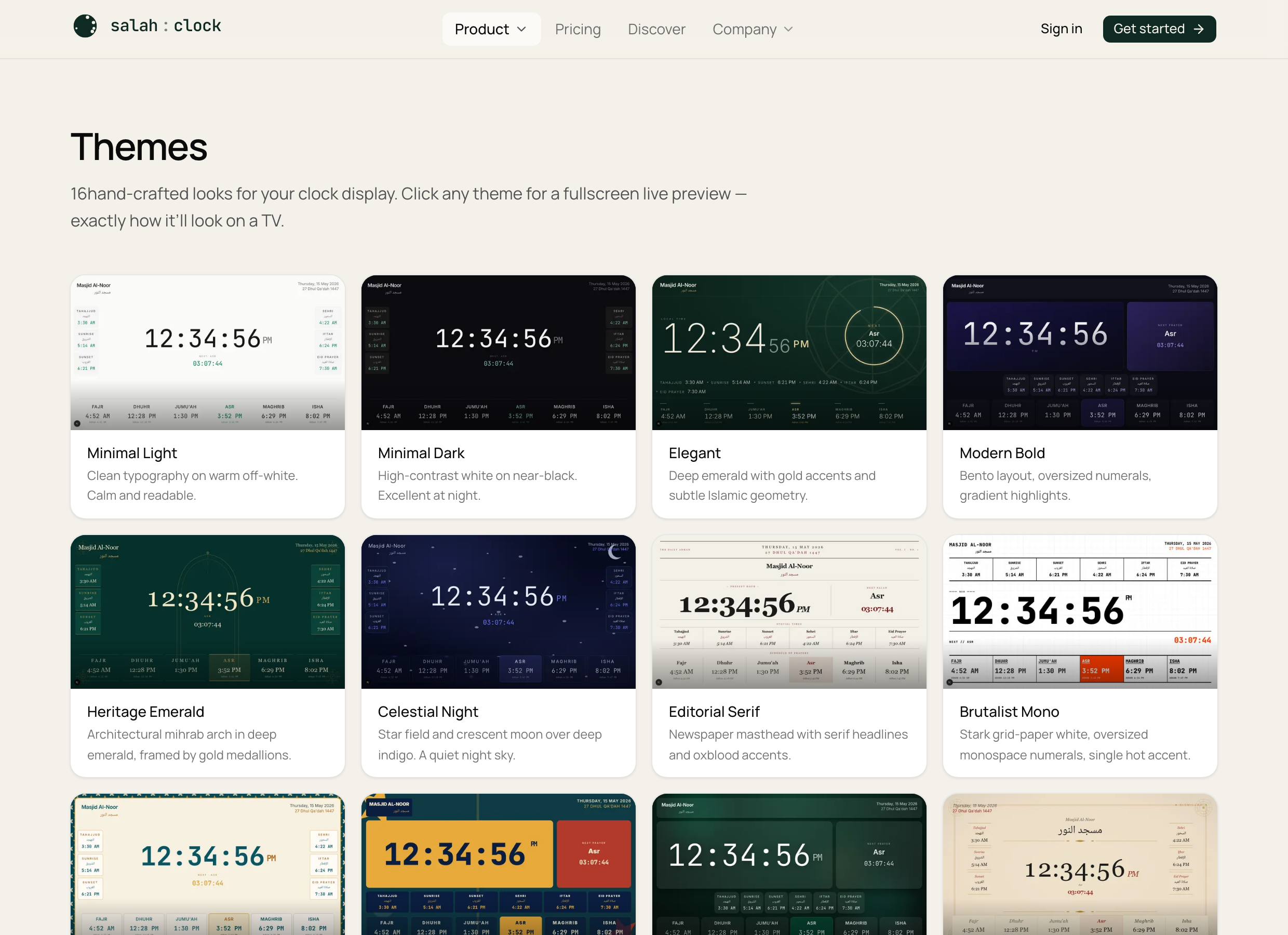
Preview before you commit
Click a theme to open a full-screen live preview using real prayer times. It's exactly what your TV will show — including right-to-left languages and portrait orientation — so you can judge it properly before applying.
Apply it
Happy with one? Select it on the clock's Themes tab and Save. Any screen already showing that clock updates within seconds.
Your logo in every theme
Paid plans can place your own logo before the primary clock name. The logo scales to the heading in each design and stays aligned in landscape and portrait. If a theme normally uses a heading icon, your logo replaces it. Your Arabic clock name remains below the primary name.
Add it from General → Clock logo. See Clock logo for supported files and setup steps.
Tip
Think about your room. A bright theme suits a sunny hall; a dark theme is easier on the eyes in a dim prayer space and at night.
Themes with video backgrounds
Drifting Fog plays a slow looping clip behind the board instead of a flat colour — a distant forest ridge with the fog drifting across it at about the pace of a desktop wallpaper. The clip is under 3 MB — roughly one photo — and your display downloads it once, then keeps it on the device, so a screen that reboots without internet still comes back with its background. If a device can't play video, or is set to reduce motion, the theme shows a still frame of the same scene instead.
Some themes need a paid plan — see Plan-gated & exclusive themes.