Dashboard overview
Your dashboard is home base. Everything you own lives here, and it's where you create new clocks and open your displays.
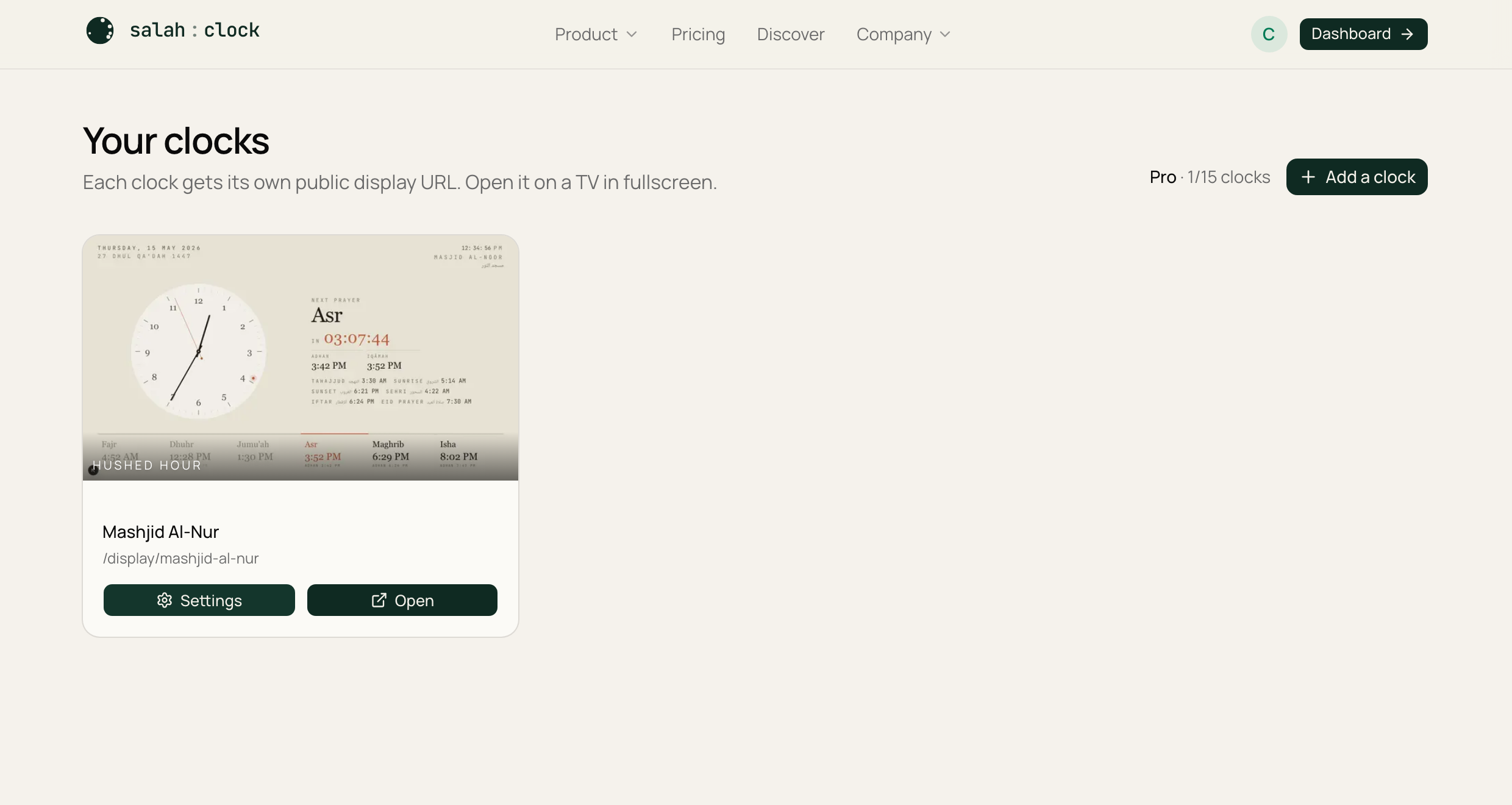
Your clocks
Every clock you've made appears as a card, newest first. Each card shows:
- A preview of the clock with its current theme.
- A Content screen badge if the clock shows slides instead of a clock.
- A Paused — over plan limit badge if the clock is above your plan's cap (more on that in Usage & limits).
Each card has two buttons:
- Settings — open everything you can configure for that clock.
- Open — launch the full-screen display in a new tab.
Adding a clock
Press Add a clock to create a new one. If you've hit your plan's limit, the button becomes Upgrade to add more instead — see Creating a clock.
Your plan and usage
Near the top you'll see your current plan (Free, Plus, Pro, or Enterprise) and how many clocks you're using, like 1 / 1 or 2 / 3. A link takes you to the full Plan & usage page.
Announcement banner
Now and then a banner appears at the top of the dashboard — that's a message from the SalahClock team (a maintenance note, a Ramadan greeting, and so on).
Tip
Can't see a clock you expected? It may be paused because you're over your plan limit. Nothing is ever deleted — see Usage & limits.