Copy URL & passcode gate
Copy the display URL
The Copy display URL button (on the dashboard and on a clock's settings) copies the full display link to your clipboard, ready to paste into the browser on your TV device. If a passcode is set, the copied link includes it automatically.
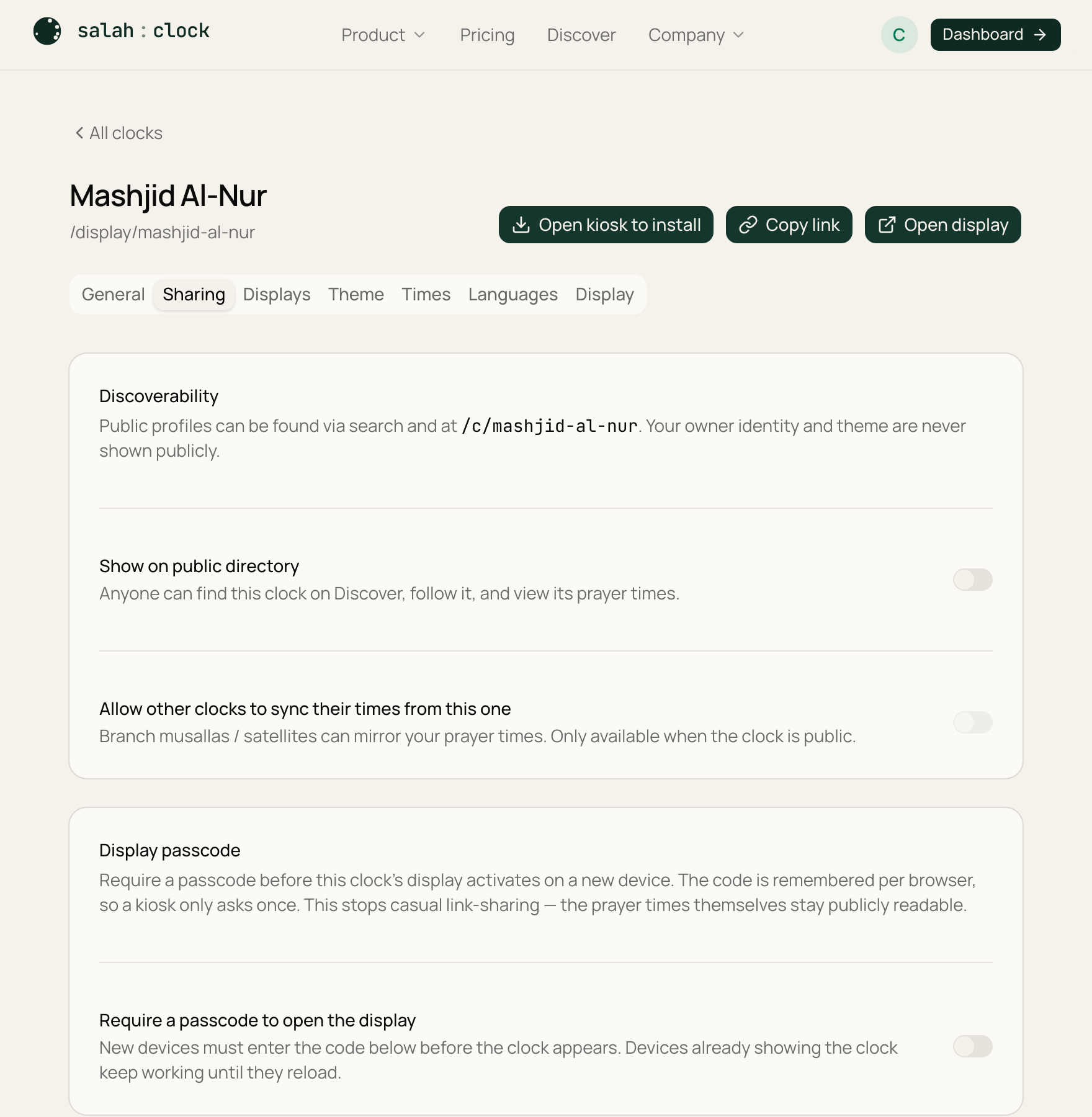
The passcode gate
A display link is normally open to anyone who has it. If you'd rather lock it down, turn on the display passcode on the Sharing tab. Then:
- SalahClock generates a short 6-character code.
- The first time a device opens the link, it asks for the code once, then remembers that device — so your TV isn't prompted every day.
- The link you copy includes the code (as
?k=CODE), so pasting it on your own device just works.
Managing the passcode
- Copy the code to share it with staff.
- Refresh it to generate a new one. The old code stops working immediately, which is the quickest way to cut off a device you no longer trust.
When to use a passcode
Handy if your display link might be shared widely (a big community, printed notices) and you want only your screens showing it. For a quiet single screen on your own wall, you may not need it at all.
Note
The passcode controls who can open the display. Making a clock public — listing it in Discover with a profile page — is a separate choice on the same tab. See Making a clock public.