Settings tour
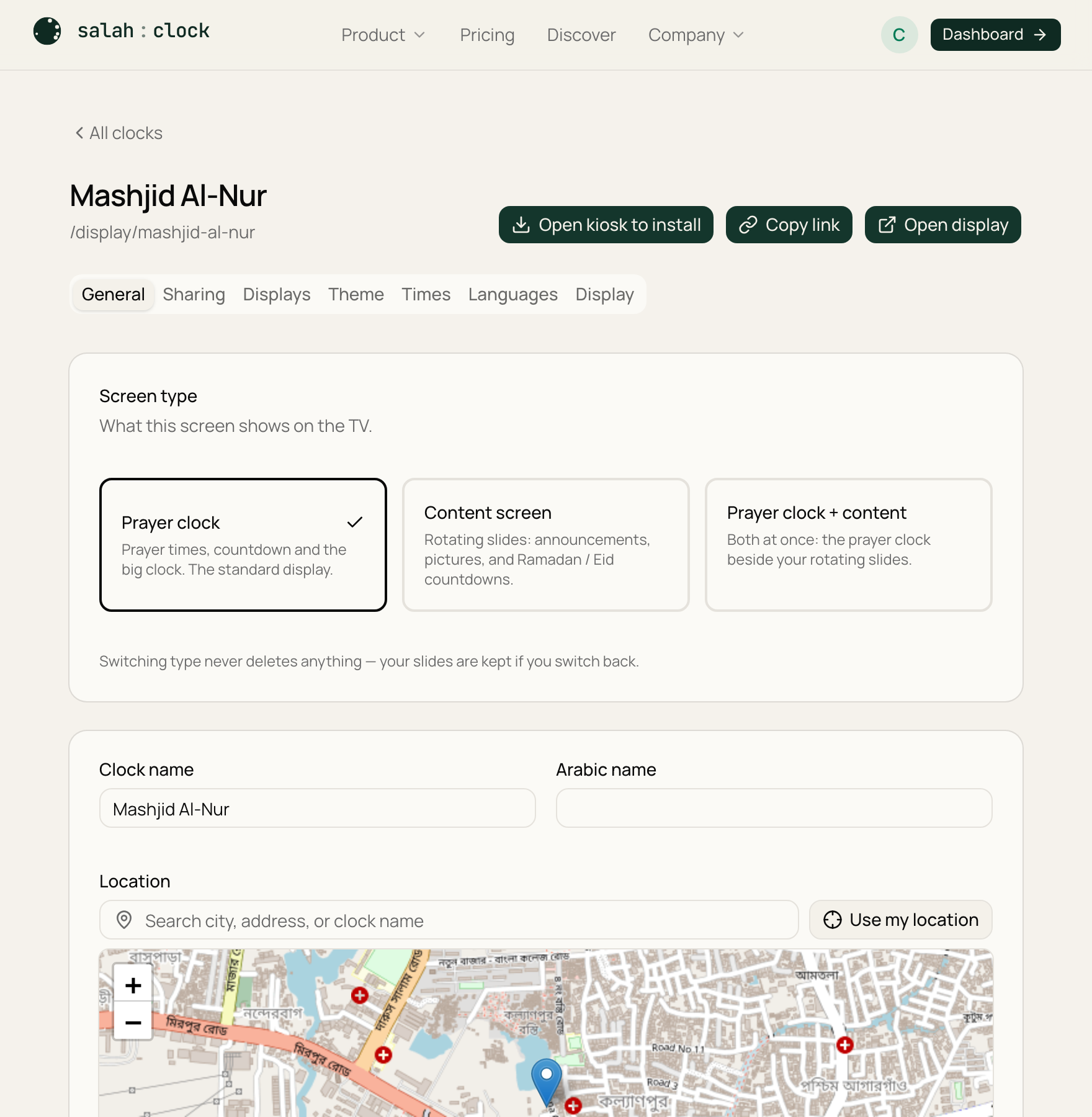
Open any clock and press Settings to reach everything you can configure. The settings are split into tabs so you only see what you need. Here's the whole map — each links to its own guide.
| Tab | What's inside |
|---|---|
| General | Clock name, Arabic name, clock logo (paid plans), location, address, announcement banner, and the screen type |
| Slides | The content slide deck (appears on Plus+ when the screen type is Content or Combined) |
| Sharing | Make it public, set a passcode, follow a sync source |
| Displays | See which screens are online and set offline alerts (appears on Plus+) |
| Theme | Switch the display design |
| Times | Calculation method & madhab, Hijri offset, supplementary times, and iqamah offsets & adhan overrides |
| Adhan | Play a real adhan recording at prayer times — pick a voice, per-prayer switches, a Fajr voice, and volume |
| Languages | Languages, numerals, and the bilingual banner |
| On screen | Seconds, Hijri & orientation, the prayer-in-progress screens, screen sleep, and Friday/khutbah settings |
Tip
You don't have to come back here to find the right guide. Every section inside the settings carries a small Docs link beside its heading that opens the matching page in a new tab — your unsaved changes stay put.
Note
Some tabs only appear when they're available to you — Slides on a Plus+ plan with a content screen, Displays on a Plus+ plan, and Theme when theme switching is enabled.
Saving
There's one Save button for the whole clock. Make all your changes across the tabs, then press Save once. The three buttons at the top — Install app, Copy display URL, and Open display — are covered in Launching your display.
Tip
The display updates live. After you save, any screens already showing this clock refresh themselves within a few seconds — no need to touch the TV.