Opening the display
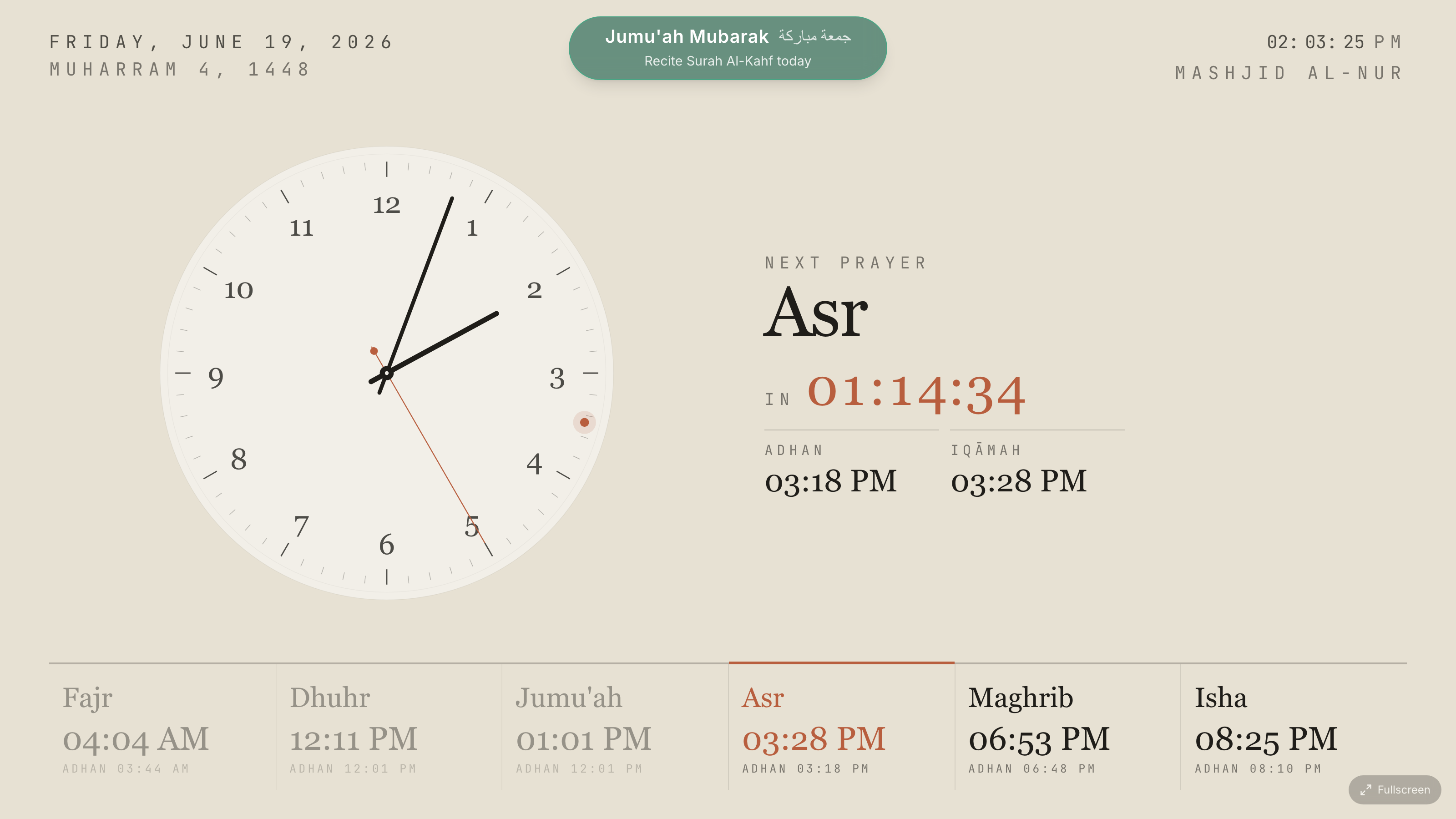
The display is the full-screen page your TV shows. Every clock has its own display link, and it works without signing in — perfect for a screen that just stays on.
Open it
From the dashboard or a clock's settings, press Open display. A full-screen clock opens in a new tab.
Put it on the TV
- 1
Get the link onto the device
On the device connected to your TV (a smart TV browser, a TV stick, a mini PC, a tablet), open the display link. The easiest way is the Copy display URL button — see Copy URL & passcode.
- 2
Go full-screen
Put the browser into full-screen so only the clock shows — no address bar, no tabs. On most devices that's the F11 key or a full-screen menu option.
- 3
Leave it running
That's it. The display keeps its own time accurate, rolls over at midnight, follows daylight-saving changes, and picks up any settings you change — all on its own.
Tip
For a screen that should run 24/7, install it as an app so it survives reboots and works offline — see Install as an app.
Note
If your clock is paused (over your plan limit), the display shows a calm notice instead of the clock — nothing is lost. See Usage & limits.