Sync source
Instead of computing its own times, a clock can mirror another clock's prayer times exactly. There are two common reasons to do this:
- One masjid, several screens — a main hall, a sisters' section, a lobby, or branch musallas that should all agree without editing each by hand.
- Home or office, near a masjid — put SalahClock on a TV at home or work and mirror your local mosque, so your screen always matches theirs.
In both cases the source is just another clock; what differs is only whether you own it.
How it works
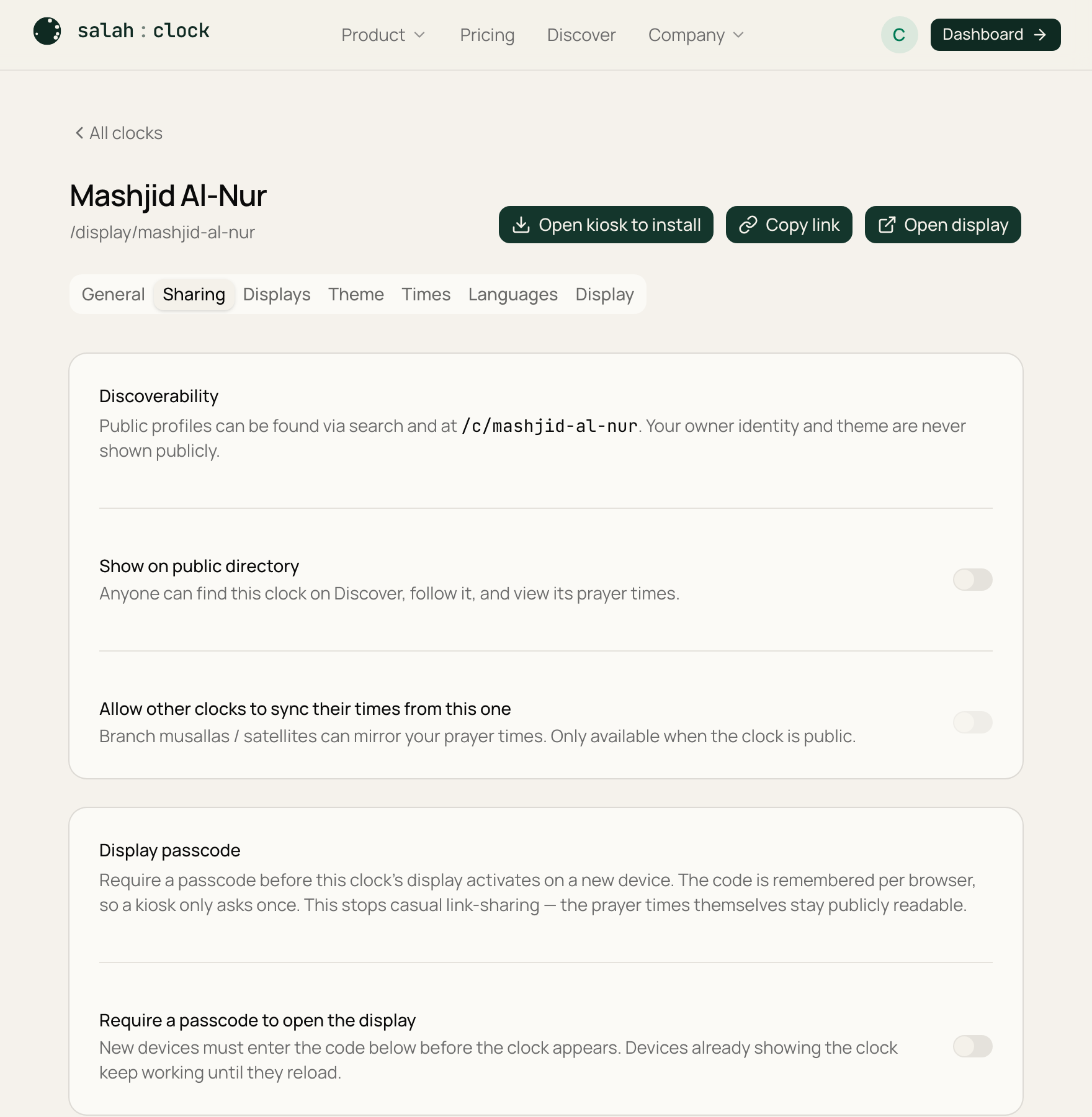
On a clock's Sharing tab, set a sync source: any public clock that allows followers — your own, or another mosque's. The follower clock then takes its time calculations from the source:
- location, calculation method, and madhab
- iqamah offsets
- any custom adhan overrides
- supplementary times (Tahajjud, sunrise, Sehri, Iftar, and so on)
But each follower keeps its own theme, labels, orientation, and content slides. So every screen can look right for its room while all showing identical times. Change the times once on the source and every follower updates too — no app to reinstall, nothing to redo on the follower screen.
Follow a nearby mosque (home & office)
This is the home or office case: a wall display that quietly mirrors your local masjid, with your own choice of theme.
- 1
Find the mosque
On your clock's Sharing tab, choose Sync from another clock and search by name — English or Arabic. The mosque only appears if it has a public clock with following enabled.
- 2
Link it
Select the mosque as your sync source. Your display now shows its exact prayer and iqamah times, in your chosen theme. When the masjid adjusts a time, your screen follows on its own — no setup to repeat.
What the source needs to switch on
A clock can only be followed once its owner has, on their Sharing tab, turned on both "Show on public directory" and "Allow other clocks to sync their times from this one." If a mosque doesn't appear as a source, ask them to enable these — or follow it on your phone via Discover & following instead.
Setting it up for your own screens
- 1
Allow syncing on the source
On the clock you want to be the source, turn on "Allow other clocks to sync their times from this one" (it requires the clock to be public).
- 2
Point each follower at it
On each follower clock's Sharing tab, search for and select the source. From then on, update the times once on the source and every follower updates too.
If the source pauses or is deleted
If a source is paused — for example, over its owner's plan limit — or deleted, its followers stop mirroring and fall back to their own saved times, so a screen never goes blank. A deleted source also leaves an orphaned sync notice you can dismiss or repoint at a new source.
Tip
For a campus or a network of branches, one "master" clock as the source saves a huge amount of repeated editing — and guarantees every screen agrees.