Making a clock public
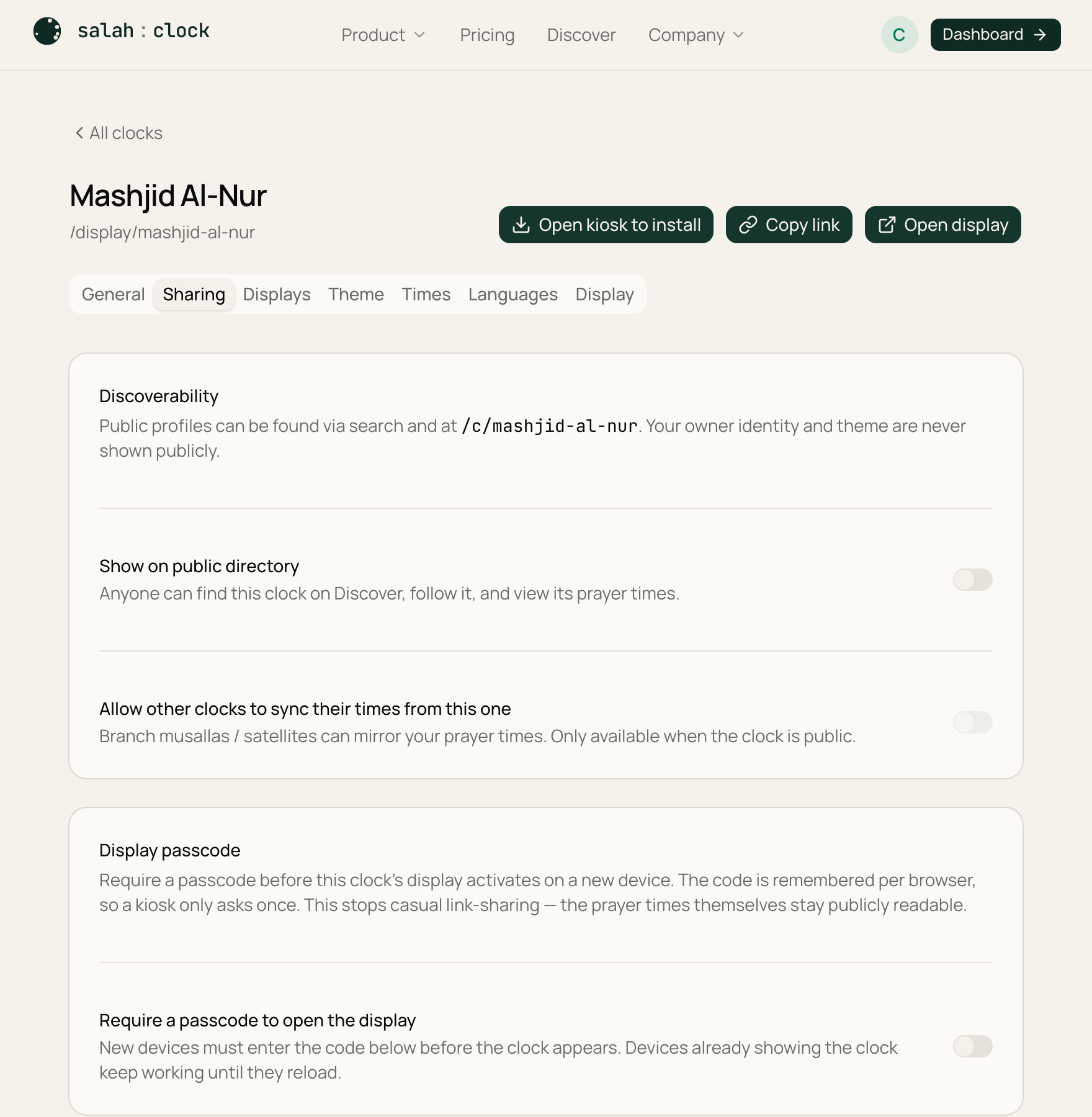
By default your clock is private — only people with the display link see it. You can choose to make it public, which gives your mosque a shareable profile page and a spot in the Discover directory.
Turn it on
Open Public profile (the button at the top of a clock's settings) and switch on Make this clock public. That single page is where you manage everything about your public presence — visibility, the page style, and its content.
Basic or Enriched
Under Page style you choose how your public page looks:
- Basic (free) — your mosque's name and Arabic name, location on a map, today's prayer times (adhan and iqamah, next prayer highlighted), any supplementary times, a Follow button, and your announcement banner.
- Enriched (paid) — a full mosque homepage. See Your mosque profile page.
A public Basic page lives at /c/your-mosque — a handy link for your website,
WhatsApp group, or printed notices, so the community always has accurate times in their
pocket.
Make it a full mosque homepage
On a paid plan, switch Page style to Enriched to add a hero photo, your imam and committee, a photo gallery, events, services, and a color theme of your choice — all from the same Public profile page.
Public vs passcode
Making a clock public is separate from the display passcode. You can have a public profile page while still keeping the full-screen display link passcode-protected, or any other combination.
Next: Your mosque profile page.