Building a slide deck
Once your screen type is Content or Combined, you build a slide deck — a set of slides that take turns on screen. It's all on the Slides tab.
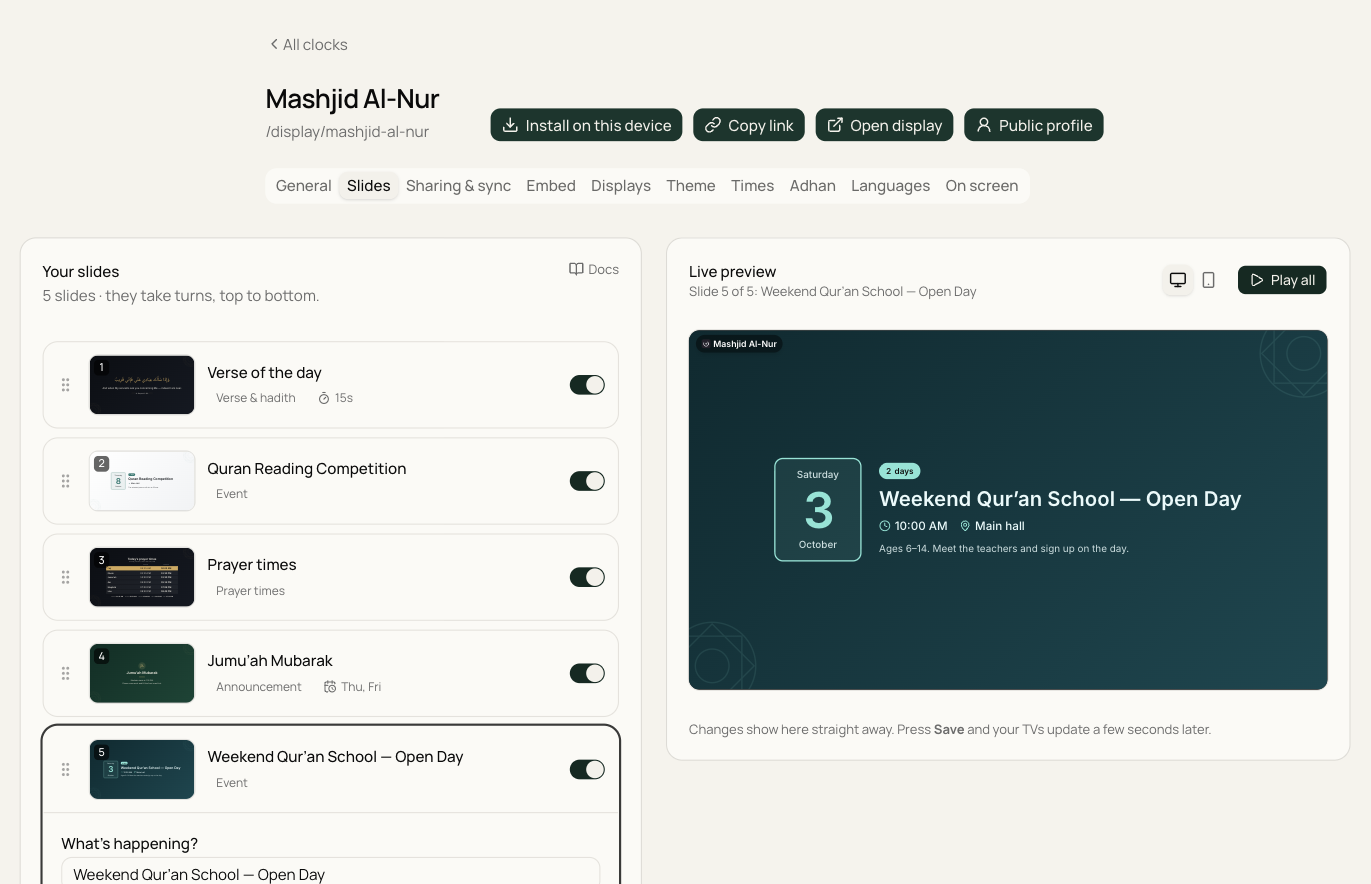
The live preview is drawn exactly the way your TV draws it, so what you see is what the congregation will see. Press Play all to watch the whole slideshow, or open a slide to see just that one while you edit. The two small screen buttons switch the preview between a wide and a tall TV.
Adding slides
Press Add slide. You can start from a blank slide of any kind, or pick one of the ready-made slides — a phone reminder, a Jumu'ah notice, a donation QR code, an open day and more — and just change the words.
Kinds of slides
- Announcement — a headline and a short message, with an optional picture (an icon such as a phone, a book or a car) above the headline.
- Event — a name, date, time and place. The slide counts down by itself ("12 days", "Tomorrow", "Today") and disappears the day after the event, so old notices never linger.
- Picture — a photo or poster you upload. Choose Fill the screen for wide photos, or Show all of it for posters and portrait flyers — nothing is cut off and the edges are filled with a soft blurred copy of the picture.
- Verse & hadith — a new Qur'an verse or hadith every day from our built-in library, one you choose from the list, or your own text. Each shows the Arabic, the English meaning (which you can hide) and the reference.
- QR code — a big scannable code that opens a website: your donation page, your website, a WhatsApp group or a newsletter sign-up. Paste the link and the code appears straight away.
- Prayer times — today's full timetable, with Iqamah times and any extra times (Jumu'ah, sunrise, and so on) you've switched on. Fully automatic.
- Ramadan and Eid — seasonal slides that appear on their own. See Ramadan & Eid slides.
A screen can hold up to 20 slides. How many pictures you can upload depends on your plan.
Editing a slide
Tap a slide in the list to open it. Besides its words, every slide has:
- Colours — pick a colour set for this one slide, or leave it on Default to follow the whole screen.
- Time on screen — keep it the same as the others, or give an important slide longer (or a quick reminder less).
- When to show — leave it on always, or press Only show at certain times to choose the days (for example Fridays only), a start and last date, and a time of day (for example 9 AM–1 PM). The slide list shows each slide's schedule, and the preview tells you when a slide is outside its schedule right now.
At the bottom of each slide you can move it earlier or later, duplicate it, or delete it (you can undo a delete straight away). On a computer you can also drag slides by the handle on their left. The switch on each slide turns it off without deleting it.
Look & feel
These settings apply to the whole screen:
- Colours — seven colour sets, from dark (Midnight, Emerald, Royal, Maroon, Teal) to light (Sand, Paper). Every slide uses these unless you pick different colours for one slide.
- Moving between slides — Fade, Slide or Zoom. Pick one and the preview shows it straight away.
- Time per slide — how long each slide stays up (default 20 seconds).
- Progress bar along the top — thin bars that show how many slides there are and when the next one is coming.
- Show your masjid's name — your name, and your logo if you've added one, in the top corner.
- Next prayer at the bottom — a slim bar with the next prayer and a countdown, always visible under the slides.
Press Save when you're done. Your TVs pick up the changes a few seconds later.
Tip
Keep text short and large — people read these from across a hall, often while walking past. A headline and a line or two beats a paragraph.